
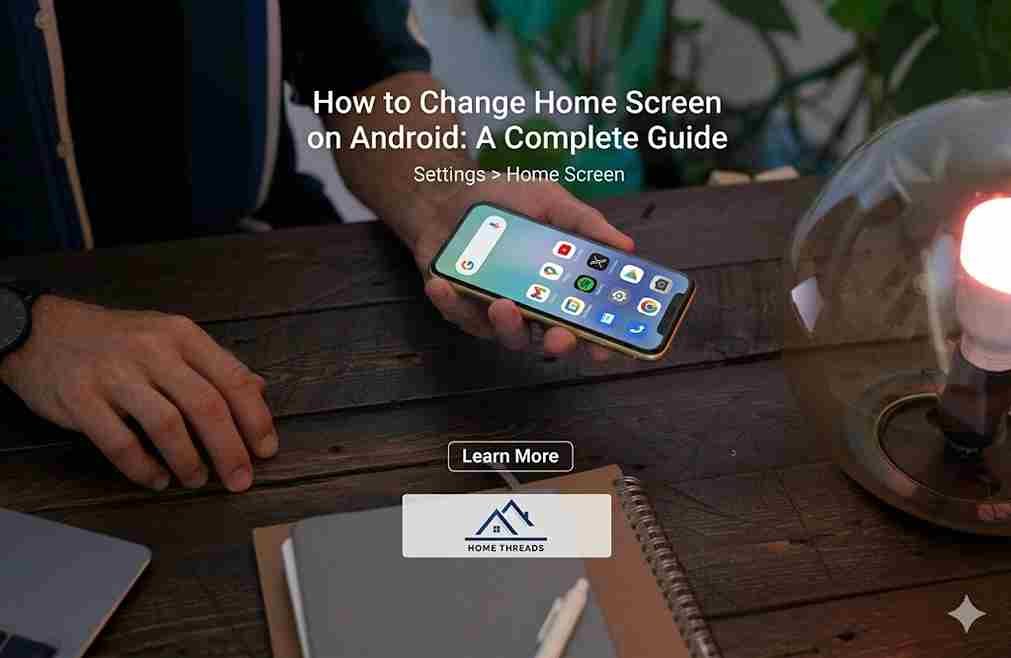
Want to personalize your Android device and make your home screen truly yours? Learning how to change home screen on Android is simpler than you think! Your home screen is more than a static display; it’s the gateway to your apps, widgets, and tools, reflecting your style and needs. Whether you want to change wallpapers, organize apps, or dive into advanced features like custom launchers, this guide has you covered. Let’s explore how you can make your Android device stand out and work better for you.
Understanding the Android Home Screen
What is the Home Screen?
The Android home screen is essentially the digital “desktop” of your phone. It consists of wallpapers, widgets (like clocks or weather updates), app icons, and shortcuts. It’s highly customizable, unlike the rigid interfaces found on some other operating systems.
Default vs. Customized Home Screen
When you first unbox your Android device, you’re greeted with a stock or manufacturer-customized home screen. While functional, it’s often generic. Customizing your home screen allows you to break free from the default setup and create something uniquely yours.
Why Customize Your Home Screen?
- Personal Expression: Showcase your personality with unique wallpapers, themes, and layouts.
- Better Organization: Group apps, arrange widgets, and create folders for efficiency.
- Improved Functionality: Add widgets and shortcuts to streamline your daily tasks.
Changing Your Home Screen Wallpaper
Step-by-Step Guide to Changing Wallpaper
- From System Settings: Go to
Settings > Display > Wallpaper. Select a pre-installed wallpaper or browse your photo gallery. Tap Set Wallpaper and choose whether to apply it to your home screen, lock screen, or both. - Using Your Gallery Photos: Open the Gallery app and select the image you want. Tap the menu (three dots) and select Set as Wallpaper.
- Using Live Wallpapers: Explore live wallpapers in the Google Play Store. Download your choice, then apply it through settings or directly from the app.
Best Practices for Choosing Wallpapers
- Resolution Matters: Use high-resolution images to avoid pixelation.
- Icon Visibility: Choose wallpapers with minimal patterns or solid backgrounds for better icon readability.
- Battery-Friendly Choices: Live wallpapers can drain your battery faster, so use them sparingly.
Recommended Apps for Wallpapers
- Walli: Offers artistic and creative wallpapers.
- Zedge: A popular app for wallpapers, ringtones, and more.
- Backdrops: Features curated collections of breathtaking backgrounds.
Adding and Customizing Widgets
What Are Widgets?
Widgets are interactive elements like clocks, weather updates, or to-do lists that you can place on your home screen. They enable at-a-glance updates and quick actions.
How to Add Widgets to Your Home Screen
- Tap and Hold: Long-press on an empty space on your home screen.
- Select Widgets: Tap the Widgets option that appears.
- Drag and Drop: Choose a widget, drag it to your desired location, and release.
Customizing Widget Size and Placement
- Resize Widgets: Tap and hold a widget, then drag the resizing handles.
- Optimize Placement: Place widgets where they’re easily accessible but don’t clutter your screen.
Top Widgets to Enhance Your Home Screen
- Weather: Stay updated with apps like AccuWeather or Google Weather.
- Calendar: Google Calendar widget is perfect for tracking events.
- Notes: Apps like Evernote or Google Keep offer handy note widgets.
- Productivity: Try Todoist or Microsoft To Do for task management.
Organizing App Icons and Folders
How to Move and Arrange App Icons
Long-press an app icon until it’s draggable. Drag it to your desired position or move it to another page by dragging it to the screen edge.
Creating and Managing Folders
- Create Folders: Drag one app icon over another to create a folder.
- Rename Folders: Open the folder, tap the name, and type your preferred label.
- Add Apps to Folders: Drag additional apps into the folder.
Tips for Clean and Efficient Layouts
- Use a minimalistic approach by limiting the number of icons per screen.
- Prioritize frequently used apps on the main screen for easier access.
Using Custom Launchers to Change Your Android Home Screen
What is a Launcher?
A launcher is an app that replaces your default home screen and app drawer, offering advanced customization options.
Top Launchers to Try
- Nova Launcher: Highly customizable with features like gesture controls and icon packs.
- Microsoft Launcher: Offers seamless integration with Microsoft apps and services.
- Action Launcher: Known for innovative features like Quickdrawer and Covers.
How to Install and Set a New Launcher
- Download a launcher from the Google Play Store.
- Open the launcher and follow the setup instructions.
- Go to
Settings > Apps > Default Apps > Home Appand select your new launcher.
Features and Customization Options with Launchers
- Icon Packs: Change the appearance of your app icons.
- Gestures: Assign actions to swipes and taps.
- Themes: Apply pre-made themes or create your own.
- Grid Size: Adjust the number of rows and columns on your home screen.
Pros and Cons of Using Custom Launchers
- Pros: Unlimited customization, improved functionality, and enhanced aesthetics.
- Cons: Some launchers may slow down older devices or consume additional battery.
Advanced Customization Tips
Using Icon Packs
Icon packs provide a cohesive look by changing all your app icons. Download them from the Play Store and apply through your launcher settings.
Setting Up Gesture Controls
Enable gesture controls for smoother navigation. For example, swipe up to open the app drawer or double-tap to lock the screen.
Changing App Drawer Settings
Customize the app drawer layout, background color, and icon sorting to suit your preferences.
Using Themes and Fonts
Some devices support system-wide themes and font changes. Check Settings > Themes or use third-party apps for more options.
Troubleshooting Common Issues When Changing Home Screen on Android
- Launcher Not Applying Correctly: Reset your launcher settings or reinstall it.
- Widgets Not Updating or Disappearing: Check app permissions and background activity settings.
- Wallpaper Not Changing or Blurry: Ensure the image resolution matches your screen size.
- Performance Issues with Custom Launchers: Disable unnecessary features or switch to a lighter launcher.
- How to Reset to Default Home Screen: Go to
Settings > Apps > Default Apps > Home Appand select your original launcher.
FAQs About Changing Home Screen on Android
Can I Change the Home Screen Without Installing a Launcher?
Yes, you can customize wallpapers, widgets, and app arrangements without a launcher.
Will Custom Launchers Affect Battery Life?
Some may consume more battery, but lightweight launchers minimize the impact.
How Do I Restore My Original Home Screen?
Reset your default launcher in the settings menu.
Are There Free Launchers That Offer Good Customization?
Absolutely! Nova Launcher and Microsoft Launcher have excellent free versions.
Can I Customize Lock Screen Separately from Home Screen?
Yes, most Android devices allow independent customization of the lock screen.
Conclusion: Make Your Android Truly Yours
Customizing your Android home screen is a fun and practical way to enhance your device. From changing wallpapers to installing custom launchers, the possibilities are endless. Remember, the key to a great home screen is balancing style with functionality. So, experiment with different layouts, widgets, and themes to create a setup that feels just right for you. Start customizing today and make your Android truly yours!